
Introduction
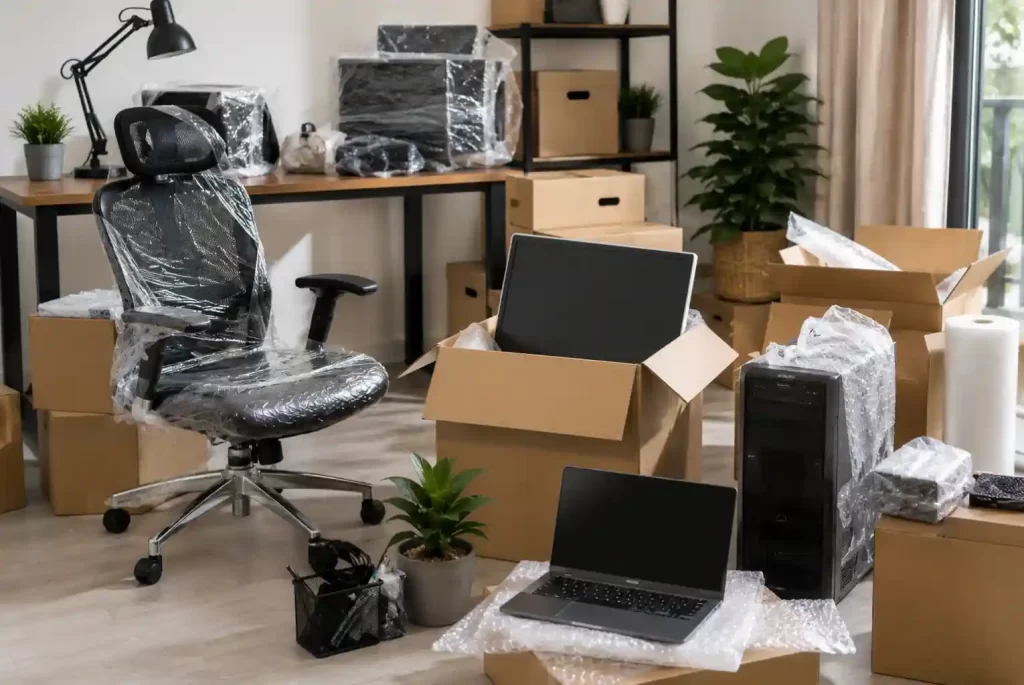
A home office relocation is nothing like moving a sofa or a bookshelf. Your workstation holds expensive monitors, CPUs, hard drives, networking equipment, and years of critical work data. One wrong move, literally, can crack a screen, corrupt a drive, or leave you without a working setup for days.
Remote workers, freelancers, IT professionals, and small business owners in India increasingly face this challenge as they move between cities for better opportunities, lower rent, or lifestyle changes. The risks are real: equipment damage, data loss, cable chaos, and prolonged downtime. This guide gives you a clear, practical roadmap to move your home office without any of those outcomes.
Why Home Office Equipment Is Vulnerable During Relocation
Most people underestimate how fragile office electronics are outside their normal environment. Here is what makes home office equipment especially vulnerable during a move:
- Monitors have thin glass panels and delicate internal components that crack under pressure or vibration.
- Hard drives and SSDs are sensitive to shocks, especially HDDs with spinning platters.
- Laptops suffer hinge damage and screen cracks when improperly packed.
- Routers, modems, and networking switches are rarely given protective packaging during moves.
- Printers have delicate print heads and ink cartridges that spill or jam under movement.
- Ergonomic chairs and desks can warp, scratch, or lose adjustment integrity if dismantled incorrectly.
Add humidity, dust exposure, and rough vehicle transit to this list, and the risk profile becomes significant.
Common Risks That Damage Office Electronics During Moving
Understanding these risks helps you prepare better:
Physical shock and vibration during road transport is the primary cause of hardware damage. Boxes sliding inside trucks, hard braking, and potholes all transfer force directly to your equipment.
Static electricity from improper packing materials can silently destroy motherboards, RAM, and GPUs.
Moisture and condensation become serious threats during monsoon moves or when equipment shifts between cold and warm environments rapidly.
Cable tangling and connector damage happens when devices are packed without proper organization, leading to bent pins and broken ports that are expensive to repair.
How to Prepare a Home Office Setup Before Relocation
Start preparing at least two weeks before your move date. Rushed packing is where most damage happens.
Step 1: Audit and Inventory Everything
List every device, cable, accessory, and peripheral. Photograph each item individually for insurance purposes and for reassembly reference. Include serial numbers.
Step 2: Back Up All Important Work Data
This is non-negotiable. Use at least two backup methods:
- Cloud backup using Google Drive, Dropbox, or OneDrive for active project files.
- External SSD backup for large files, software configurations, and databases.
- System image backup for your primary work machine to avoid full reinstallation after the move.
Test your backups before you pack anything.
Step 3: Uninstall or Secure Consumables
Remove ink cartridges from printers. Drain water cooling systems if present. Remove batteries from wireless peripherals. These small steps prevent leaks, corrosion, and internal damage during transit.
Best Packing Materials for Office Electronics and Accessories
Generic cardboard boxes and newspaper are not acceptable for office electronics packing. Use the right materials:
- Anti-static bubble wrap for motherboards, GPUs, RAM sticks, and circuit boards. Regular bubble wrap carries static risk.
- Double-walled corrugated boxes for monitors, CPUs, and printers. Single-wall boxes flex under pressure.
- Foam corner protectors for monitor screens and glass panels.
- Silica gel packets inside sealed boxes to absorb moisture during transit.
- Original manufacturer boxes, when available, offer the best fit and protection.
- Cable ties and labeled zip bags for chargers, adapters, and peripheral cables.
Safe Ways to Move Monitors, Laptops, CPUs, and Printers
Monitors
Always keep monitors vertical during transport. Pack them in their original boxes when possible. If not, wrap in anti-static foam, then bubble wrap, and place vertically in a snug-fitting double-walled box. Never stack items on top of monitor boxes.
Laptops
Wrap in soft anti-static cloth, then place in a padded laptop bag or a custom-fit foam case. Keep laptops with you in the vehicle rather than in the moving truck whenever possible.
CPUs and Desktop Towers
Remove the GPU and RAM sticks from the motherboard for long-distance moves. Place them in anti-static bags. Secure internal cables with cable ties. Pack the tower with foam on all six sides inside a double-walled box.
Printers
Remove ink cartridges and seal the cartridge compartments with tape. Lock the print head carriage using the manual lock if available. Pack with foam cushioning on all sides.
Organizing Cables, Chargers, and Networking Devices Efficiently
Cable management during moving is where most professionals lose hours of productivity after relocation.
Before unplugging anything, photograph your entire workstation setup from multiple angles. This serves as your reconnection guide.
Label every cable at both ends using masking tape or a label maker. Include the device it connects to and the port it plugs into. Group cables by device, seal them in labeled zip bags, and place them in the same box as the device they belong to.
For networking devices such as routers, modems, switches, and network-attached storage, photograph the back panel before disconnecting. Label every ethernet port’s cable.
Protecting Important Work Data Before Moving
Even with hardware that arrives safely, data loss can still occur due to sudden power interruptions, drive corruption from vibration, or connection failures during reassembly.
- Enable automatic cloud sync before disconnecting your machine.
- Create a full system backup using tools like Macrium Reflect (Windows) or Time Machine (Mac).
- Physically carry hard drives and SSDs in anti-static foam pouches rather than packing them in the moving truck.
For professionals handling sensitive client data, encrypted external drives provide an additional layer of protection during transit.
Ergonomic Furniture Dismantling and Transportation Tips
Ergonomic chairs and standing desks are investments. Treat them accordingly.
- Remove all adjustable components from chairs: armrests, headrests, and lumbar supports. Pack them separately in padded bags.
- For standing desks, keep the motor and control unit protected from vibration. Refer to the manufacturer’s manual for safe dismantling.
- Wrap desk surfaces in moving blankets to prevent scratches.
- Take photographs before dismantling complex furniture for reassembly reference.
Common Mistakes People Make While Moving Home Office Setups
Avoid these errors that cost professionals time and money:
- Packing all cables in one generic box without labeling creates hours of confusion during reconnection.
- Using regular bubble wrap on electronics instead of anti-static materials.
- Not backing up data before the move, assuming the hardware will survive transit intact.
- Placing monitors flat instead of vertical in transport.
- Forgetting to inform the internet service provider about the new address in advance causing delays in connectivity.
- Hiring general movers without experience in IT equipment relocation.
DIY Relocation vs Professional Movers
For a single-room setup with basic equipment, careful DIY packing is manageable. But for professionals with multiple monitors, server setups, expensive workstations, or interstate home office relocation, professional movers with electronics experience are worth the cost.
Questions to Ask Movers Before Hiring
- Do you have experience handling office electronics and IT equipment?
- What packing materials do you use for screens and hardware?
- Do you offer insurance coverage for equipment damage during transit?
- Have you handled monitor transport and workstation relocation before?
Verify answers with references or documented experience, not just verbal assurances.
Tips for Reconnecting and Setting Up Your Workspace After Moving
Reassembly is as important as packing. Follow a structured process:
- Acclimate equipment for at least 30 minutes if moved from a cold to a warm environment before powering on.
- Use a surge protector before connecting any device. Power surges are common in new locations with unstable electrical infrastructure.
- Reconnect using your pre-move photographs as a guide.
- Test each device individually before running a full workload.
- Set up your internet connection first. Contact your ISP at least one week before moving to schedule installation at the new address.
- Once powered on, verify your backup data is accessible before starting any critical work.
Final Checklist for Relocating a Home Office Safely
- Full data backup completed (cloud and physical)
- All equipment photographed and inventoried
- Cables labeled at both ends
- Anti-static packing materials sourced
- Monitors packed vertically with foam corner protection
- GPUs and RAM removed for long-distance transport
- Ink cartridges removed from printers
- ISP informed and installation scheduled at the new location
- Surge protector ready for reconnection
- Insurance coverage confirmed for equipment
- Reassembly photographs saved and accessible
Conclusion
A successful home office relocation comes down to preparation, the right materials, and disciplined execution. Whether you are moving across Gurugram, shifting from Bangalore to Mumbai, or relocating internationally, the risks to your equipment and productivity are identical. Back up your data, pack with anti-static materials, label everything, and give your workspace the same careful handling you would expect from a specialist.
Your workstation is your livelihood. Treat the move accordingly.

